Find the original width and height
Aspect ratio means the relationship between width and height. First note both dimensions of the complete file. Keep the original safe while you make a task copy.
For example, a 1200 by 400 pixel logo has a 3 to 1 ratio. At half the width, it becomes 600 by 200. The matching height is new width × old height ÷ old width.
| New width | Calculation for height | New height |
|---|---|---|
| 600 pixels | 600 × 400 ÷ 1200 | 200 pixels |
| 300 pixels | 300 × 400 ÷ 1200 | 100 pixels |
| 150 pixels | 150 × 400 ÷ 1200 | 50 pixels |
These are arithmetic examples. A smaller copy still needs a readability check. Do not force a square output by giving the mark a square shape.
Keep the dimensions linked
GIMP links width and height to keep proportions. Scaling estimates new pixels through interpolation.
Sources for this point: GIMP image scaling guide.
- Make a working copy of the approved file.
- Find the chain, lock or proportion control in your editor.
- Turn it on before changing a dimension.
- Enter the required width and check the new height.
- Compare a round shape and a letter with the original.
If your editor has no such control, calculate both dimensions first. If the source was already stretched, linking that damaged copy only keeps its damaged proportion. Return to the approved source.
Fit the box instead of changing the logo
A wide logo inside a square needs empty space. That is often the correct result. Decide whether the whole mark must remain visible before picking a fill setting.
Fit without cropping
CSS contain keeps proportions while fitting the box. Fill can change them.
Sources for this point: W3C image fitting rules.
Choose a setting that shows the whole mark. If the destination insists on a square image, prepare a square canvas with space around the proportional logo.
When another layout helps
If a wide name becomes too small inside that square, ask for an approved stacked or icon version. That is a layout decision, not a reason to squash the original.
Look at a deliberately squeezed example

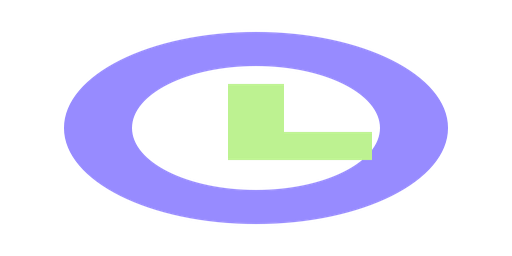
The source contains a round feature. In the squeezed copy, that feature has a different shape. We made this change on purpose to show why fitting a slot is different from keeping the mark intact.
Check the saved copy in its destination
An SVG viewBox defines the area mapped into its display box. Aspect ratio settings affect that mapping.
Sources for this point: W3C SVG size and viewBox guide.
If an SVG looks stretched only on the page, ask the site editor to inspect those settings and its display box. Do not redraw the mark before checking the placement.
- Reopen the saved copy and read its dimensions.
- Compare the symbol, letters and spaces with the approved source.
- Place it in the real destination at the intended size.
- If it cannot fit legibly, choose an approved layout made for that space.
Choose a horizontal or stacked layout
Keep the final dimensions with the filename. Your check is complete when the whole mark retains its approved proportion in the real slot.
Sources
These sources support the points linked above. Each date shows when we checked that source.
- GIMP image scaling guide
GIMP links dimensions and uses interpolation when scaling pixels Checked . - W3C image fitting rules
CSS fitting controls image proportions and clipping in a box Checked . - W3C SVG size and viewBox guide
SVG viewBox and aspect ratio settings affect display mapping Checked .